
 OpenPost
Configure a Pinterest app and understand the approval needed to connect and publish.
Pinterest requires more setup than the other networks. Even on a self-hosted instance, OpenPost needs a record of your app's Standard approval before a normal account connection. Publishing, discovery, and analytics also need current test evidence for each operation. Saving credentials alone will not make those actions available.
This guide prepares the app. If you need an integration you can configure and use immediately, choose another network from social integrations while you complete Pinterest approval.
Before you start
- Set
OPENPOST_APP_URLto the public HTTPS origin of your instance. - Have a Pinterest business account to administer a Pinterest developer app and a separate account and board for testing.
- Request Pinterest Trial access for development, then Standard access before serving other users. Pinterest explains the access tiers. OpenPost's runtime and certification controls must also permit the exact operation before production use.
Configure the Pinterest app
-
Follow Pinterest's Connect app flow, submit your app details for Trial access, and open its Manage page after approval.
-
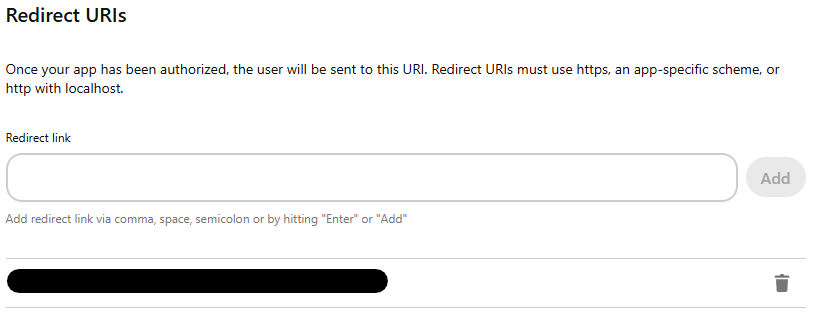
Register this redirect URI in the app's OAuth settings:
https://post.example.com/api/v1/accounts/pinterest/callback -
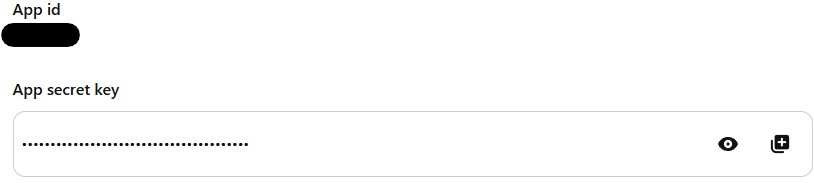
Copy the app ID and Secret key. OpenPost requests
boards:read,boards:write,pins:read,pins:write, anduser_accounts:read. Confirm the app can obtain those scopes for your test account. -
Before serving other users, apply for Standard access and complete Pinterest's review requirements, including a demonstration of the OAuth flow. Keep normal production access disabled until the intended OAuth, board, Pin, discovery, and analytics operations have current live certification.
Pinterest documents OAuth redirect matching and scopes.
Save the app in OpenPost
Use this provider entry when saving your app credentials. Replace the example domain with your OpenPost address.
[
  {
    "provider": "pinterest",
    "client_id": "your-pinterest-app-id",
    "client_secret": "your-pinterest-secret-key",
    "redirect_uri": "https://post.example.com/api/v1/accounts/pinterest/callback"
  }
]
Complete approval and test publishing
- Once your app has Standard access and the instance records that approval, open Settings → Workspace → Social accounts and connect the Pinterest account.
- After recording current local and live evidence for image-Pin publishing, choose a board owned by that account and publish one small image Pin. Check the OpenPost result and the Pin on Pinterest. Board section targeting, video Pins, discovery, and analytics need their own tests and access evidence.
- Record which app, account, scopes, and operation passed. Do not infer that a successful image Pin makes every Pinterest feature ready for public use.
Trial testing uses the administrator-only certification_test flow, which allows a first test without previous test evidence. It still checks app configuration, trial permission, account authorization, and provider policy. Trial Pins and boards are visible only to their creator.
The operator readiness guide explains how administrators record approval and test results through the session-authenticated API. This is currently an operator API workflow, not a switch in the workspace settings.
If it does not work
- Pinterest does not appear or connection is blocked: Check the instance's provider runtime and certification controls before the OAuth details. A credential alone does not lift the gate.
- OAuth fails: Confirm Trial or Standard access, requested scopes, and the exact redirect URI in both systems.
- Pin fails: Confirm that the chosen board belongs to the connected account,
pins:writeis granted, and the media meets Pinterest's current requirements. Test each output type separately.